
Device changes · Practical setup guide
Move IPTV to a New TV: Account, Player and Settings Checklist
By Best IPTV Service Provider editorial team · Published 2 November 2026
A new television does not necessarily need a new IPTV subscription. Before buying again, check whether your current account supports the new device, whether its player needs a separate license, and which settings can actually move. This guide is for changing hardware while keeping an authorized service, rather than switching to a different provider.
Commercial disclosure: we promote related services, including TereaTV. The commercial link below is not an independent test result or a guarantee of compatibility. This checklist does not confirm any seller's content rights, pricing or account-transfer policy.
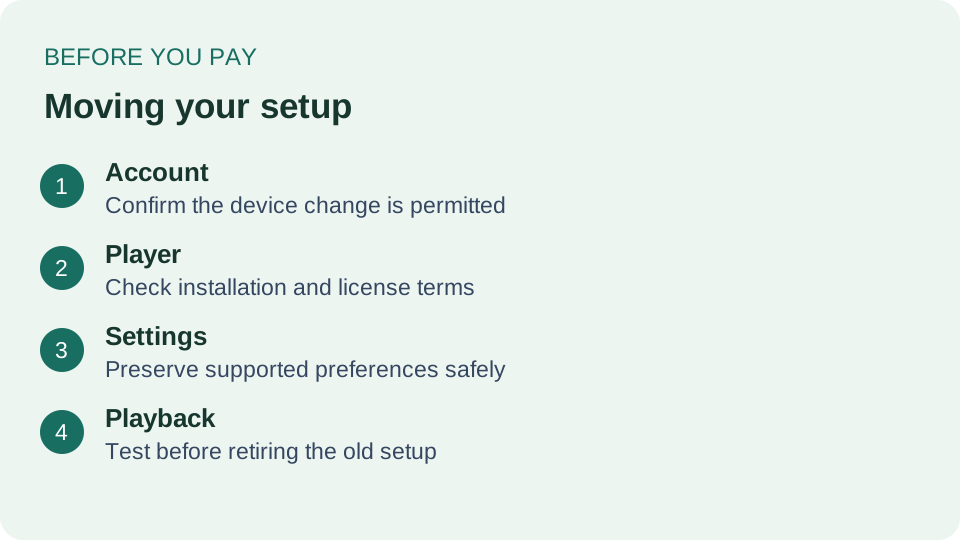
Quick answer: can an IPTV account move to another TV?
It may be possible if the subscription permits the new device and its supported app can use the authorized login method. Ask the seller about device registration, household restrictions and any required account reset. Confirm the player license separately with its developer. Do not pay for a second subscription until you know which part of the setup is missing.
1. Identify what you are moving
Make a short inventory before disconnecting the old television. Record its model, operating system, player name and version, the seller's support address, and the subscription expiry date. Keep passwords and full playlist addresses out of shared notes. An account reference can help support locate your purchase without exposing credentials.
- Service account: access supplied by the subscription seller, subject to its own terms.
- Player: the software used to open supported content; its purchase may be separate.
- Preferences: favourites, guide timezone, captions and other settings that may be stored locally.
- Hardware: the television or streaming device, with its own app availability and software requirements.
These items do not automatically transfer together. A paid player on one platform may have different licensing on another. Conversely, an app installation alone does not establish that the service account works on the new hardware. The inventory tells you which company to contact for each question.
2. Check the exact new device before installing anything
Use the full model and operating-system version, not just the TV brand. Ask whether the recommended app is available for that model and your region. Verify the developer and installation instructions through the official store or developer's own documentation. Avoid a download merely because its name resembles the player you already use.
For Google TV specifically, Google's app installation guide describes finding and installing applications on that platform. It does not confirm that your IPTV seller supports a particular app, or that a previously purchased app license follows you to a different platform. Get those answers separately.
If the required player is unavailable, ask about a supported alternative or a compatible external streaming device before purchasing one. A new box adds another cost and remote control; it should solve a documented compatibility problem rather than become an automatic upsell.
3. Obtain a written answer about account activation
Ask whether your existing subscription can be used on the new model, whether the old device must be removed, and whether a device identifier must be updated. If support requests an identifier, use the official private support channel. Never post login details, activation codes or unredacted account screenshots in public comments.
I am replacing my television and want to keep my current subscription. Please confirm the supported player for my new model, whether a device reset is required, whether any player purchase is separate, and whether I must stop using or remove the old device before testing. Please also confirm whether the change affects my remaining paid access.
This message is a starting point, not evidence of a seller's policy. Save the reply with your order records. Our provider questions checklist covers broader buying questions; this device move needs a precise answer about the account you already own.
4. Preserve preferences using supported options
Check the player's own help for a backup, export or sync feature. If available, confirm what it contains, which versions can restore it and whether it includes account secrets. Keep the backup private. Do not upload it to an unknown conversion website or send it to someone who does not need account access.
If there is no documented transfer feature, write down non-sensitive preferences: guide timezone, preferred subtitle language, favourite categories and display settings. Recreating a short favourites list is safer than assuming an unsupported backup is compatible. Record settings before a factory reset; resetting the old TV first can remove the only copy.
A player backup is not necessarily a backup of recordings or purchased content. Storage locations and transfer permissions differ. Ask the relevant app or service support whether anything you want to retain is portable, and do not promise yourself that everything will reappear after login.
5. Test the replacement without exceeding your allowance
Stop playback on the old device before testing if your account permits only one active stream. Open the authorized account on the new player, then check the remote, picture sizing, guide times, captions and audio selection. Start with a short, repeatable test so you can describe a failure clearly.
If login works but playback fails, record the exact error and the app version. If playback works but favourites are missing, investigate preference storage rather than buying another subscription. If the app cannot be installed, the issue is platform compatibility. Separating these outcomes avoids paying to solve the wrong problem.
Keep the old setup intact until the replacement passes the checks and the seller's device rules allow the handover. Then sign out or remove account information before selling or giving away the old device. Follow the device maker's reset instructions when you are ready; this guide does not recommend resetting it before testing.
If a replacement service is genuinely needed
You can consult TereaTV for current subscription and setup information, then request written confirmation for your exact hardware. This is a commercial option, not a compatibility certification. If you decide to change sellers, use our separate provider switching guide to manage billing and avoid confusing a hardware move with a new subscription.
Frequently asked questions
Does buying a new TV cancel my subscription?
Changing hardware is not a billing cancellation. Check the seller's account and renewal rules separately from the device installation.
Will my paid player license transfer?
Do not assume so. Ask the developer whether the license covers your new platform, account and device, and whether another purchase is required.
Can I keep both TVs signed in?
Ask about registered-device and simultaneous-stream limits separately. Permission to install on two devices does not necessarily permit both to play together.
Why did my favourites disappear?
They may have been stored locally or in a different app profile. Check documented sync or restore options before concluding that the subscription is broken.
Should I reset the old TV first?
Normally preserve the working setup while checking the replacement, within the account rules. Remove personal information before handing the old device to someone else.
Is a successful login enough to finish the move?
No. Test permitted playback, guide times, remote navigation, captions and any feature you need, then save the confirmed setup details privately.